Most PDF Mergers Upload Your File. This One Doesn't — And You Can Drag Pages Into Any Order You Want.
By N3ST3D LABS · freeapptools.co
PDF merging sounds simple until you actually need to do it. You have three documents, you need them as one, and every tool online either wants your email address, puts a watermark on the result, or uploads your files to a server you've never heard of before you ever see the output.
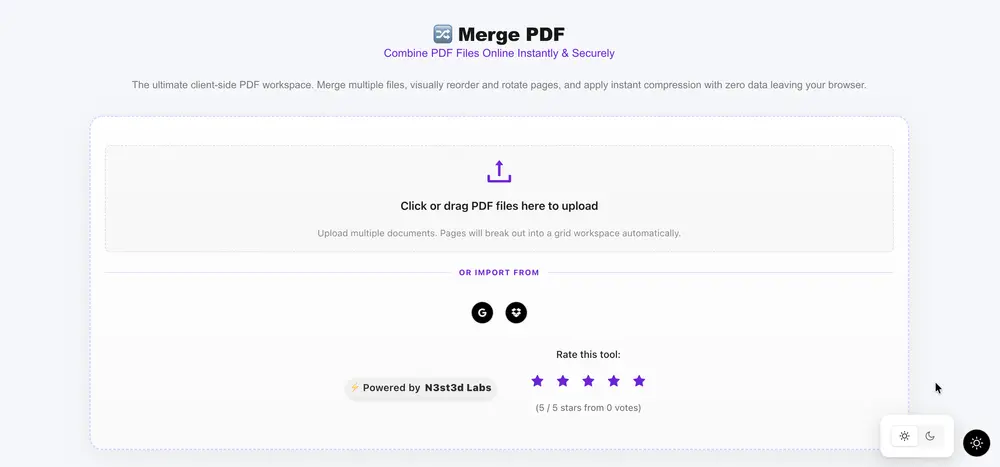
The Merge PDF tool at freeapptools.co skips all of that. Drop your PDFs, drag the pages into whatever order you need, and download a clean merged file — processed entirely in your browser using PDF.js and pdf-lib. Nothing leaves your device.
Here's how it works and what makes it different.
Not Just Merge — Build
Most PDF mergers give you one thing: combine file A with file B in the order you uploaded them. That's fine if your documents are already in perfect order. In reality they never are.
The tool treats every PDF you upload as a source of individual pages rather than a single file. Drop three PDFs and you don't get "File 1 + File 2 + File 3" — you get a grid of every page from all three documents, each one as its own draggable card.
From there you do whatever you actually need to do:
- Drag page 4 from Document A in front of page 1 from Document B
- Remove the cover sheet that came with the scanned invoice
- Rotate the sideways page before it becomes permanent in the merged output
- Rearrange an entire chapter structure across multiple source files
The output PDF contains exactly the pages you kept, in exactly the order you arranged them. Nothing more, nothing less.
How the Processing Pipeline Works
When you drop a PDF, the tool runs it through PDF.js locally — the same Mozilla library powering Firefox's built-in PDF viewer. Each page gets rendered to a canvas element at 30% scale, converted to a JPEG thumbnail, and displayed in the workspace grid. No uploads. The arrayBuffer of your file lives in browser memory and goes nowhere.
When you click Compile and Download, pdf-lib takes over. It creates a fresh PDF document and copies each page from your arrangement — in order — directly from the source file buffers. Because it uses copyPages rather than re-rendering pages as images, everything that was in the original document transfers intact: selectable text, embedded fonts, vector graphics, form fields, hyperlinks.
The result is a structurally valid PDF — not a flattened image stack — that behaves exactly like a natively created document.
Page Rotation Built Into the Merge
Scanned documents rotate pages constantly. A page that looks fine in your PDF viewer might be stored rotated 90° in the file's actual structure. The tool surfaces this before you commit to a merge.
Hover over any page card and you'll see a rotation button. Each click rotates that specific page 90° clockwise in the preview — and that rotation carries into the final compiled PDF. The rotation is applied during the copyPages step using pdf-lib's setRotation method, so what you see in the workspace is what you get in the download.
Optional Compression on the Way Out
Once you've arranged your pages, you can optionally apply compression to the merged output before downloading. Three levels:
Low targets roughly 15% file size reduction — structural cleanup with minimal visual impact. Good for documents that need to stay crisp for print or presentation.
Medium scales page dimensions down to 75% — expect 30-40% smaller output. The right choice for email attachments and document sharing where file size matters but readability needs to hold up on screen.
High drops to 60% scale — up to 55% smaller. For reference copies, previews, or anything being shared where storage space is a bigger priority than visual crispness.
The workspace shows your estimated output size in real time as you switch between compression levels, with the original size displayed as a strikethrough so you can see exactly how much you're saving before you download.
How to Merge PDFs — Step by Step
- Drop one or more PDF files onto the upload zone. You can add multiple files at once or add them one at a time.
- The tool extracts every page from every file and displays them as a thumbnail grid — each card numbered in current order.
- Drag cards to rearrange the page sequence across all your source documents.
- Click the delete button on any card to remove a page from the output entirely.
- Click the rotate button on any sideways page to fix orientation before merging.
- Optionally select a compression level — the estimated output size updates instantly.
- Click Compile and Download PDF — your merged file downloads directly to your device.
Common Questions
Can I merge more than two PDFs at once?
Yes — there's no fixed limit on the number of source files. Drop as many as you need and all their pages appear in the workspace grid simultaneously. The tool caches each source document's buffer so pages from the same file don't get re-read from disk on every merge operation.
Will the text in my PDFs still be searchable and copyable after merging?
Yes — as long as the source PDFs contained selectable text layers. The tool uses pdf-lib's copyPages method which transfers page contents directly rather than re-rendering them as images. Fonts, text layers, vector graphics, and hyperlinks all carry over. The only exception is if your source PDFs were already flat scanned images with no text layer — in that case there was no text to preserve, and the output correctly reflects that.
When to Use This Tool
Use it when you're assembling a proposal from multiple source documents, combining scanned pages from different files into a single submission, pulling specific pages out of a large document and reordering them, or preparing a document package that needs pages from several sources in a custom sequence.
Don't use it if your documents contain interactive form fields you need recipients to fill in — copyPages preserves static form field appearances but the interactivity may not transfer cleanly depending on the complexity of the original form. For static documents, reports, contracts, and scanned content it works exactly as expected.
Try the Merge PDF tool at freeapptools.co. No account, no upload, no watermark — and your pages go in whatever order you actually need them.


