That One Page in Your PDF That Shouldn't Be There — Here's How to Remove It
By N3ST3D LABS · freeapptools.co
You've got a PDF. 14 pages. Everything looks good except page 3 — a cover sheet from the original template that wasn't supposed to make it into the final document. Or a blank page that appeared out of nowhere. Or a confidential appendix that should have been stripped before sending.
The obvious move is to open it in Adobe Acrobat. Except you don't have Acrobat. The free version doesn't let you edit pages. The online PDF editors want you to create an account. And every site that offers "free PDF editing" has a download button that's actually a subscription prompt in disguise.
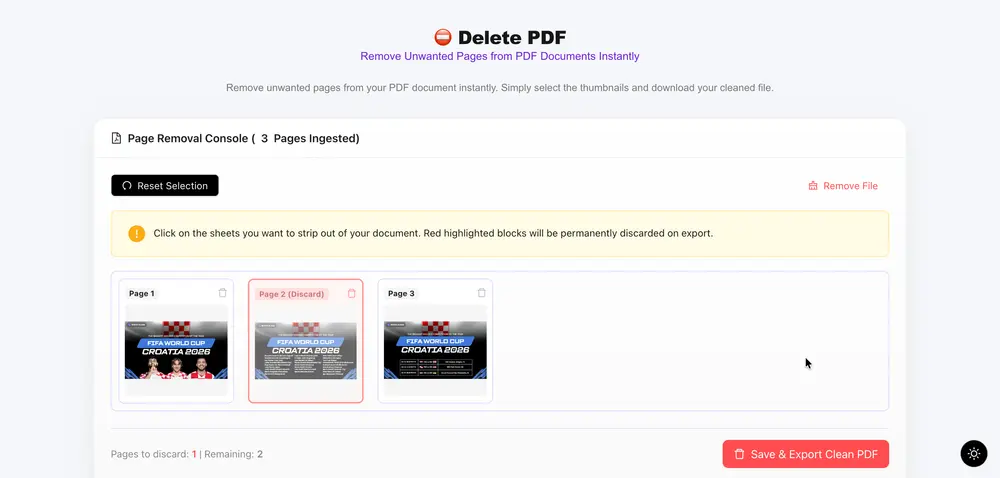
Our Delete PDF Pages tool skips all of that. Drop your file, click the pages you want gone, export. Nothing gets uploaded to a server. The whole operation runs in your browser using pdf-lib — the same library powering professional PDF tooling — and your file stays on your device the entire time.
What the Tool Actually Does Under the Hood
Most browser-based PDF tools that claim to "delete pages" are doing one of two things: re-rendering pages as images (which destroys text searchability) or shipping your file to a backend server to do the real work.
This tool does neither.
When you drop a PDF, it uses PDF.js to parse the document locally and render thumbnail previews of every page directly on your device. Those previews are generated at 30% scale as JPEG snapshots — fast enough to render even large documents without locking up your browser, with enough detail to read what's on each page.
When you export, pdf-lib handles the page removal by copying only the pages you kept — vector graphics, embedded fonts, text layers and all — into a new PDF document. The pages you deleted are never written to the output. The result is a clean, properly structured PDF, not a flattened image stack.
That distinction matters for anything that needs to stay searchable: contracts, invoices, research papers, forms. Your text stays text.
How to Delete Pages From a PDF
- Drop your PDF onto the upload zone or import from cloud storage.
- Wait a moment for the page grid to load — every page renders as a clickable thumbnail.
- Click any page you want to remove. It highlights red with a discard label. Click again to deselect.
- Check the counter at the bottom: it shows how many pages are marked for deletion and how many will remain.
- Hit Save & Export Clean PDF and the edited file downloads immediately.
One constraint worth knowing: you can't delete every page. The tool requires at least one page to remain in the output — a valid PDF can't be empty. If you try, it stops you before processing.
When You'd Actually Use This
The obvious case is removing a page that was never supposed to be there. But the tool handles a few other scenarios worth calling out.
Stripping confidential pages before sharing. If you have a report where the appendix contains internal data, select those pages and export a clean version. Nothing gets uploaded in the process — the file never leaves your machine.
Cleaning up scanned documents. Scanners love to add blank pages between sections, especially when scanning double-sided. Drop the scanned PDF in, click all the blank pages, export without them.
Trimming a downloaded document. Terms of service PDFs, spec sheets, user manuals — sometimes you need just a section of a larger document. Select everything you don't need, export what remains.
Common Questions
Will deleting pages affect the text, fonts, or formatting in the pages I keep?
No. The tool uses pdf-lib to copy your kept pages directly into a new document — it doesn't re-render them or convert anything to images. The original page contents, including embedded fonts, vector graphics, form fields, and selectable text, transfer intact. What you keep looks exactly like it did in the original.
The only exception is if your source PDF is already a scanned image-only document (no text layer). In that case, the pages are already images — the tool preserves them as-is, which is the right behavior, but there's no text layer to recover.
Is there a page limit, or a limit on file size?
There's no hard page limit enforced by the tool. In practice, very large PDFs (100+ pages, heavy images) will take longer to generate previews because the browser is rendering every thumbnail locally. For most documents — contracts, reports, slide decks — the preview generation is fast.
File size limits depend on your browser's available memory more than anything we control. Chrome and Firefox handle files well into the hundreds of megabytes without issues on a modern machine. If your browser tab crashes on a very large file, try closing other tabs to free up memory and reload.
What It Doesn't Do
This tool is purpose-built for page removal. It won't let you reorder pages, add new ones, annotate, edit text, or merge multiple files. Those are separate tools on freeapptools.co, each built to do one thing well rather than trying to cover everything with a bloated interface.
If you need to reorder pages in addition to removing some, the workflow is: delete the unwanted pages here first, then use a dedicated page reorder tool on the resulting file.
Try the Delete PDF Pages tool at Free App Tools Delete PDF Tool
No account, no watermark, no file upload — just the edit you needed and a clean download.


