Your PDF Is Too Big. Here's How to Fix It in Your Browser — No Upload Required.
By N3ST3D LABS
PDF files bloat fast. A single slide deck with embedded images can balloon to 40MB. Email attachments get rejected. Cloud storage fills up. Clients complain the file "won't open."
Most solutions to this problem involve uploading your file to a third-party server — one you know nothing about — and hoping they delete it after. That's a bad trade.
Our free Compress PDF tool skips the server entirely. Everything runs inside your browser, in memory, and nothing leaves your machine. Here's how it works and when to use each compression profile.
What "Browser-Based Compression" Actually Means
When you upload a file to most online PDF compressors, it travels to a server, gets processed, and comes back. Your document touched someone else's infrastructure. For personal files, invoices, contracts, or anything with a signature on it, that's a real risk you're taking silently.
Browser-based processing is different. The tool uses two libraries — PDF.js (Mozilla's open-source PDF renderer) and pdf-lib — both of which run entirely in JavaScript inside your tab. The file never touches our servers. It doesn't touch any server. The arrayBuffer() of your PDF lives in browser memory and gets garbage collected when you're done.
You can verify this yourself: open your browser's network tab, upload a file, and compress it. Zero outbound requests carrying your document.
Three Compression Profiles — What Each One Does
The tool offers three strategies. They're not just quality sliders — each one does something meaningfully different to the file.
Low Compression renders each page at 130% of original scale with 85% JPEG quality. This doesn't shrink the file dramatically (expect around 8-18% reduction), but it cleans up internal PDF structure inefficiencies and re-encodes embedded graphics without visible degradation. Good for files you still need to look sharp in print or presentation.
Medium Optimization drops the render scale to 95% and JPEG quality to 55%. This is the default for a reason — it hits the sweet spot most people need. A 10MB PDF typically comes out around 6-7MB. Images look fine on screen and in standard print. Most clients won't notice the difference.
Aggressive Shrink renders at 70% scale with 35% JPEG quality. If you're sending a reference copy via email or compressing something for a web preview, this gets the job done. Expect 40-55% size reduction. The tradeoff is visible compression artifacts on high-detail images or fine typography.
Before you compress, the tool runs all three simulations on your file and shows you the estimated output size for each. Pick the right profile before you download — no trial and error.
The Page Rotation Feature (And Why It's There)
One thing that catches people off guard: scanned PDFs often arrive with pages sideways or upside down. If you compress a rotated PDF without correcting it first, the output inherits that rotation.
The workspace shows thumbnail previews of your first 8 pages. Hovering over any thumbnail reveals a rotate icon. Click it and that page rotates 90° in the final output — the preview updates visually so you can confirm before downloading. Each subsequent click adds another 90°.
This is baked into the compression pipeline, not a post-processing step. The rotation is applied during page rasterization, so the output PDF has correct page dimensions, not a landscape page inside a portrait container.
How to Compress a PDF — Step by Step
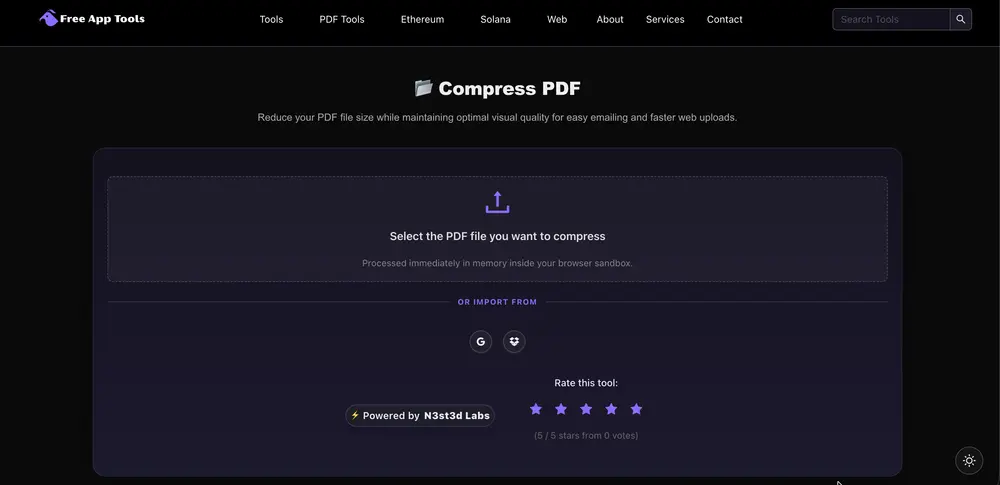
- Go to the tool and drop your PDF onto the upload zone, or drag it directly.
- Wait for the page previews to load. The tool is running all three compression simulations in the background.
- Check any page thumbnails that look sideways — hover and click to fix rotation.
- Review the three profile options. Each shows the estimated output size.
- Select your profile and click Compress & Download PDF.
- The compressed file downloads directly to your device.
That's the whole flow. No account required, no email, no watermark.
Common Questions
Does compressing a PDF reduce its quality permanently?
It depends on the profile. Low Compression is nearly lossless for typical documents — you'd struggle to see a difference. Medium Optimization introduces minor JPEG compression on images, but for anything displayed on a screen or printed at standard resolution, the quality holds up.
Aggressive Shrink is genuinely lossy. If your PDF contains high-resolution photography, fine print charts, or small-font legal text, you'll likely see visible artifacts. Use it for file transfers where readability matters more than crispness, not for archiving or print production.
Searchable text content — actual typed text in the PDF — is not affected by any profile. The compression only applies to how page contents are rasterized and re-encoded as JPEG images. If your source PDF is text-heavy with minimal embedded images, you'll see smaller reductions overall, but no quality loss on the text itself.
Is it safe to compress confidential or sensitive documents in this tool?
Yes, in the context that matters: your file does not leave your browser. The processing happens locally using JavaScript — the same way a desktop app would process files, except it runs in your tab instead of a native binary.
That said, browser security is only as strong as your browser and device. If your system is compromised at the OS level, browser-local processing doesn't help you. For highly sensitive documents — attorney-client privileged material, medical records, classified content — the right answer is an offline desktop tool in an air-gapped environment. For the vast majority of everyday use cases (business documents, invoices, presentations, scanned forms), this tool is appropriate and genuinely more private than uploading to a third-party server.
When This Tool Is the Right Choice
Use it when you need to email a file that's over an attachment limit, compress a batch of scanned invoices before uploading to accounting software, shrink a presentation before sharing a public link, or fix a page rotation problem in a PDF before sending it out.
Don't use it as a substitute for proper PDF editing software if you need to modify actual text, add form fields, or preserve vector graphics at print production quality. It re-renders pages as JPEG images — that's how the compression works, and it's the right trade-off for most use cases, but not all.
Try the tool at Free App Tools Compress PDF. No account, no upload, no catch.
If you run into a file that doesn't compress as expected or a page rotation that behaves oddly, [open an issue or send feedback] — edge cases in PDF structure are real, and we track them.


